Introduction: Let’s Be Honest About NVIDIA — And Why AMD Still Makes Sense
No hype here. NVIDIA GPUs with CUDA are the better option for running LLMs — better ecosystem, better tooling, better raw throughput. That said, not everyone needs to win a benchmark.
If the goal is to learn how LLMs work, experiment with open-source models, or build projects that run entirely offline — an AMD GPU is more than capable. The RX 7900 XTX has 24 GB of GDDR6 VRAM, which is the real currency in local LLM inference. At that VRAM budget, the performance gap narrows considerably, and for small workloads it becomes largely irrelevant.
Ollama makes the whole thing accessible. It abstracts away the ROCm complexity and provides a clean interface to pull, run, and manage models.
This guide covers:
- A frank look at where NVIDIA leads — and why it mostly doesn’t matter here.
- A small benchmark of the models actually installed and tested on this RX 7900 XTX setup.
- A complete step-by-step Ollama + ROCm installation on Linux.
- AMD GPU passthrough to a Proxmox LXC container for isolation.
The Mental Model: NVIDIA Is Better — Here’s What That Actually Means in Practice
NVIDIA + CUDA is the gold standard for LLM inference. Better library support, more optimized kernels, faster raw throughput. If the use case involves training models or production-scale inference, that is the right platform.
For local inference with quantized GGUF models via Ollama, the gap shrinks significantly. The bottleneck for a 27B Q4 model is memory bandwidth, not compute. The RX 7900 XTX delivers 960 GB/s — close enough to NVIDIA’s top consumer cards that the practical difference, for a use case of generating responses at reading speed, is negligible. The 24 GB VRAM budget is what actually determines which models can run, and on that metric the RX 7900 XTX holds its own.
Benchmark: The Three Models Actually Tested
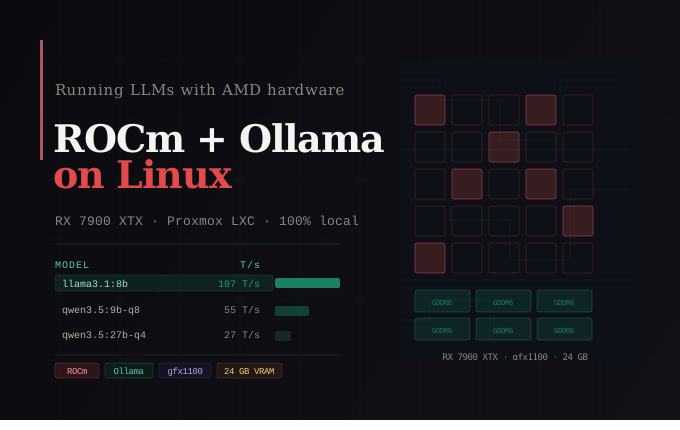
The RX 7900 XTX runs on the RDNA 3 (gfx1100) architecture with 24 GB of GDDR6 VRAM. The models below are the ones I’ve installed and benchmarked on this exact setup. VRAM is the primary constraint — models that fit entirely in VRAM run fully GPU-accelerated; anything that spills over to system RAM slows to a crawl.
| Model | Tokens | Elapsed | T/s |
|---|---|---|---|
qwen3.5:9b-q8_0 |
512 | 60.31s | 55.72 |
qwen3.5:27b-q4_K_M |
512 | 27.54s | 26.92 |
llama3.1:latest |
512 | 8.19s | 107.14 |
A few observations worth noting:
llama3.1:latest(8B) is the clear speed winner at 107 T/s — well above comfortable reading speed, and the right pick for interactive tasks where latency matters more than reasoning depth.qwen3.5:9b-q8_0is slower than its size suggests because Q8 quantization means nearly double the data movement per token compared to Q4. The quality trade-off is worth it: Q8 is virtually indistinguishable from full BF16 precision.qwen3.5:27b-q4_K_Mat 26.92 T/s sits comfortably above reading speed while delivering near full-precision 27B reasoning quality.
Step-by-Step: Installing Ollama with AMD ROCm on Linux
Prerequisites
- Ubuntu 24.04 LTS (recommended) or equivalent Debian-based distro
- AMD Radeon RX 7900 XTX
- 16 GB system RAM (recommended)
- A user account with
sudoprivileges
Step 1: Add your user to the required GPU groups
sudo usermod -a -G render,video $USER
# Log out and back in, or run:
newgrp render && newgrp video
Step 2: Install the AMD ROCm driver stack
The RX 7900 XTX uses the gfx1100 ISA and is natively supported by ROCm v6+. The amdgpu-install utility from AMD’s official repo handles the driver stack:
# Download the installer (check AMD's site for the latest version)
wget https://repo.radeon.com/amdgpu-install/latest/ubuntu/noble/amdgpu-install_7.2.1.70201-1_all.deb

# Install the package manager
sudo apt install ./amdgpu-install_7.2.1.70201-1_all.deb
sudo apt update

# Install ROCm with the 'rocm' use-case flag
sudo amdgpu-install --usecase=rocm --no-32 -y

# Reboot to load the kernel module
sudo reboot
Step 3: Verify the GPU is detected
# Check that ROCm sees your card
rocminfo | grep -E "Name|gfx"
If rocminfo is not found, add /opt/rocm/bin to your PATH:
echo 'export PATH=/opt/rocm/bin:$PATH' >> ~/.bashrc
source ~/.bashrc
Step 4: Install Ollama
Ollama’s official installer auto-detects ROCm on Linux and configures GPU acceleration automatically:
curl -fsSL https://ollama.com/install.sh | sh

# Verify installation
ollama --version

# Check service status (starts automatically as a systemd service)
systemctl status ollama
Step 5: Set the ROCm environment variable (RX 7900 XTX specific)
The RX 7900 XTX should be auto-detected, but setting it explicitly avoids any fallback to CPU:
sudo mkdir -p /etc/systemd/system/ollama.service.d/

sudo tee /etc/systemd/system/ollama.service.d/override.conf <<EOF
[Service]
Environment="HSA_OVERRIDE_GFX_VERSION=11.0.0"
Environment="GPU_MAX_HEAP_SIZE=100"
Environment="GPU_MAX_ALLOC_PERCENT=100"
EOF

sudo systemctl daemon-reload
sudo systemctl restart ollama
Step 6: Pull and run a model
# Pull the recommended model
ollama pull qwen3.5:27b-q4_K_M

# Start an interactive session
ollama run qwen3.5:27b-q4_K_M

# Verify GPU is being used (in a second terminal)
rocm-smi
GPU memory utilization should jump to ~16 GB and compute utilization should spike during inference.
Step 7: Benchmark with a simple Python script
#!/usr/bin/env python3
"""
Ollama AMD GPU Benchmark Script — tech-my-mind.com
"""
import requests
import time

OLLAMA_URL = "http://localhost:11434/api/generate"
MODELS = [
    "qwen3.5:9b-q8_0",
    "qwen3.5:27b-q4_K_M",
    "llama3.1:latest",
]
PROMPT = "Explain the difference between symmetric and asymmetric encryption in detail, with code examples in Python."

def benchmark_model(model: str) -> dict:
    payload = {
        "model": model,
        "prompt": PROMPT,
        "stream": False,
        "options": {"num_predict": 512},
    }
    start = time.time()
    response = requests.post(OLLAMA_URL, json=payload, timeout=300)
    elapsed = time.time() - start
    data = response.json()

    eval_count = data.get("eval_count", 0)
    eval_duration_ns = data.get("eval_duration", 1)
    tokens_per_second = eval_count / (eval_duration_ns / 1e9)

    return {
        "model": model,
        "tokens_generated": eval_count,
        "elapsed_seconds": round(elapsed, 2),
        "tokens_per_second": round(tokens_per_second, 2),
    }

if __name__ == "__main__":
    print(f"{'Model':<35} {'Tokens':>8} {'Elapsed':>10} {'T/s':>8}")
    print("-" * 65)
    for model in MODELS:
        try:
            result = benchmark_model(model)
            print(
                f"{result['model']:<35} {result['tokens_generated']:>8} "
                f"{result['elapsed_seconds']:>9}s {result['tokens_per_second']:>8}"
            )
        except Exception as e:
            print(f"{model:<35} ERROR: {e}")
python3 benchmark.py
Step 8: Expose Ollama to your local network (optional)
By default Ollama only listens on localhost. To allow other devices on the LAN (useful for future projects):
sudo tee -a /etc/systemd/system/ollama.service.d/override.conf <<EOF
Environment="OLLAMA_HOST=0.0.0.0:11434"
EOF

sudo systemctl daemon-reload && sudo systemctl restart ollama
Security note: Never expose port 11434 to the internet without authentication. If possible, restrict also the list of allowed machines to reach your Ollama host.
Future & Ethics
The ROCm stack is improving release by release. For local inference with quantized models, the practical gap to NVIDIA is already small enough that it rarely affects daily use. As ROCm & Ollama continues abstracting hardware differences, the setup covered in this guide will only get smoother.
The privacy argument stands regardless of GPU vendor. Data sovereignty is not paranoia — it is good architecture. Running 100% local models eliminates the cloud trust vector entirely. No terms-of-service concerns, no training data opt-outs, no API outages — everything stays on the machine.
The RX 7900 XTX is not the fastest local inference platform available. It is an honest, capable, and cost-effective one — and for learning and privacy-focused work, that is entirely sufficient.
⚙️ Optional: AMD GPU Passthrough to a Proxmox LXC Container
This section targets users running Proxmox who want Ollama isolated in an LXC container while sharing resources with other services.
Why LXC over a VM?
A VM with full GPU passthrough gives that VM exclusive ownership of the GPU — no other guest can use it simultaneously. An LXC container shares the host kernel and accesses the GPU device files (/dev/dri/card0, /dev/dri/renderD128) directly, allowing other containers to do the same.
Trade-off: LXC passthrough is less isolated than a VM but far more flexible for a multi-service machine. For a dedicated inference node, a VM is the correct choice. For a shared server, LXC wins.
Step 1: Verify GPU device files on the Proxmox host
ls -la /dev/dri
# Expected:
# crw-rw---- 1 root video  226,   0 ... card0
# crw-rw---- 1 root render 226, 128 ... renderD128
Step 2: Create the LXC container
Create an Ubuntu 24.04 unprivileged LXC container via the Proxmox web UI with at least:
- 4 CPU cores
- 8 GB RAM
- 40 GB disk (or mount a separate volume for model storage)
Step 3: Add GPU passthrough to the LXC config
Shut down the container, then edit its config on the Proxmox host:
nano /etc/pve/lxc/100.conf # replace 100 with your container ID
Add at the bottom:
# AMD GPU passthrough
lxc.cgroup2.devices.allow: c 226:0 rwm
lxc.cgroup2.devices.allow: c 226:128 rwm
lxc.mount.entry: /dev/dri/card0 dev/dri/card0 none bind,optional,create=file
lxc.mount.entry: /dev/dri/renderD128 dev/dri/renderD128 none bind,optional,create=file
Step 4: Set device permissions on the Proxmox host
chmod 0666 /dev/dri/card0
chmod 0666 /dev/dri/renderD128

# Persist across reboots with a udev rule
cat > /etc/udev/rules.d/99-amd-gpu-lxc.rules <<EOF
SUBSYSTEM=="drm", KERNEL=="card[0-9]*", MODE="0666"
SUBSYSTEM=="drm", KERNEL=="renderD[0-9]*", MODE="0666"
EOF

udevadm control --reload-rules
Step 5: Install ROCm and Ollama inside the LXC
Start the container and follow Steps 1–7 from the main guide above. ROCm will see the passed-through device files and treat them as direct hardware access.
# Verify GPU visibility inside the container
rocminfo | grep -E "Name|gfx"
# Should show: AMD Radeon RX 7900 XTX / gfx1100
Step 6: Validate GPU-accelerated inference
ollama pull qwen3.5:9b-q8_0
ollama run qwen3.5:9b-q8_0 "What is ROCm?"

# In a second terminal inside the LXC:
rocm-smi   # GPU utilization should spike during generation
If Ollama falls back to CPU (check with
ollama ps): ensurehip-runtime-amdis installed and the user running Ollama belongs to therenderandvideogroups inside the container.
Conclusion: Good Enough Is Actually Good
NVIDIA and CUDA are the better option for LLM inference — no argument there. But if an RX 7900 XTX is already in the machine, or available for less than NVIDIA’s equivalent VRAM tier, it is a legitimate and capable platform for local AI work. The 24 GB VRAM budget unlocks the same model classes, the output quality is identical, and the privacy benefits are GPU-vendor-agnostic.
Key takeaways:
- NVIDIA leads on raw performance — acknowledged, and not the point of this setup.
qwen3.5:27b-q4_K_Mis the daily driver — near full-precision 27B reasoning quality at ~17 GB VRAM.qwen3.5:9b-q8_0is the fast lane — near full-precision quality at ~10 GB VRAM for interactive tasks.llama3.1:latestis the speed baseline — 107 T/s, great for quick lookups and high-throughput pipelines.- ROCm + Ollama on Linux works — natively supported; the whole setup takes 2 hours.
- 100% local means 100% private — a non-negotiable for security work and sensitive pipelines.
- Proxmox LXC passthrough enables GPU sharing across services without sacrificing isolation.
Next steps: Integrate Ollama with Open WebUI for a ChatGPT-like interface running entirely on local hardware — a solid foundation for any 100% local AI project.